 Venus AI
From download to "Hey Venus"
A simple walkthrough, with screenshots of each step.
Install Venus
Run VenusAI-Setup-1.2.0.exe
If Windows shows a blue box saying "Windows protected your PC", choose More info and then Run anyway.
Follow the tour
The installer explains the main features with pictures. Press Next to continue.
Choose extras
Desktop shortcut, Start with Windows, and Ollama for free local AI. Anything Venus needs, such as WebView2, is installed for you.
Finish
Leave "Launch Venus AI" ticked and press Finish. Venus opens and asks a few easy questions.
Connect an AI
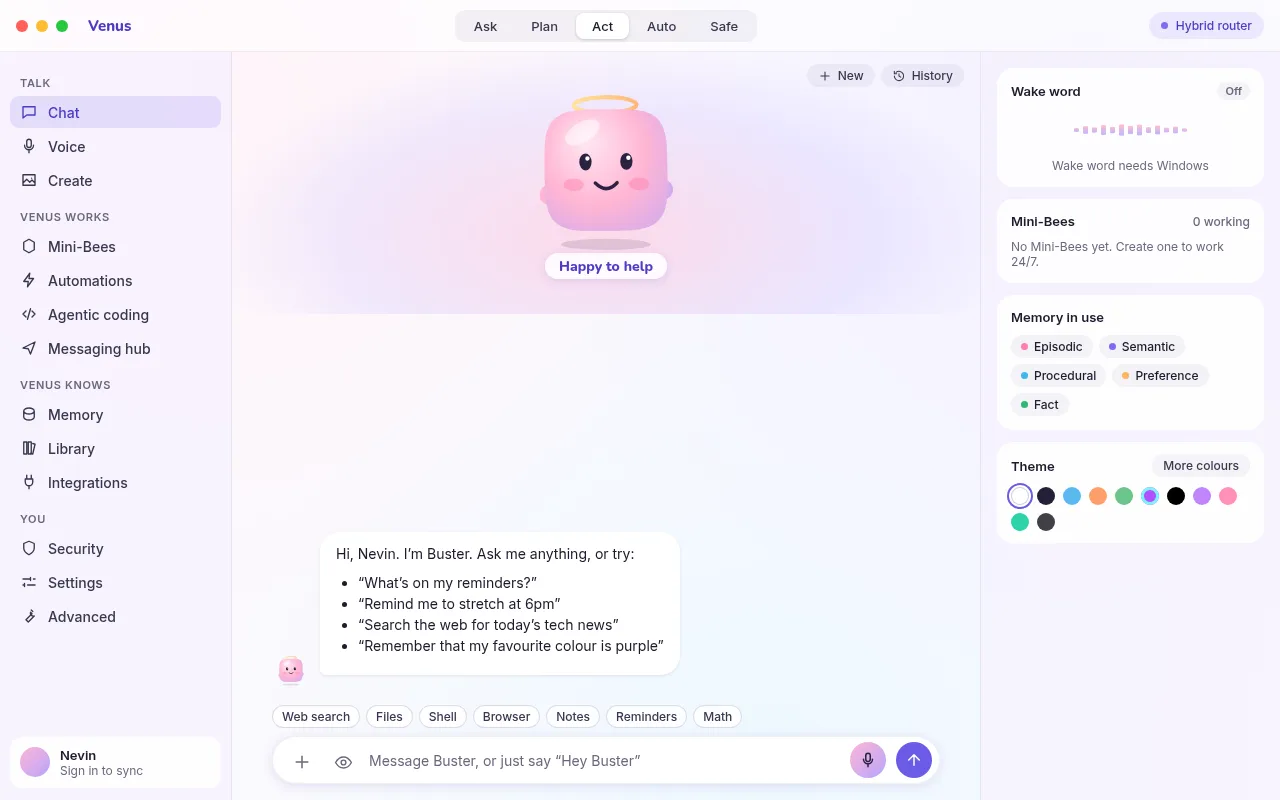
Open Settings, then AI models. Each provider has a card.
- Press Get key to open the provider's key page
- Paste the key, then press Check. A green tag means it works
- Pick a model from the list, or leave it on Automatic
- For free, private AI, install Ollama and pick a model
Talk to Venus
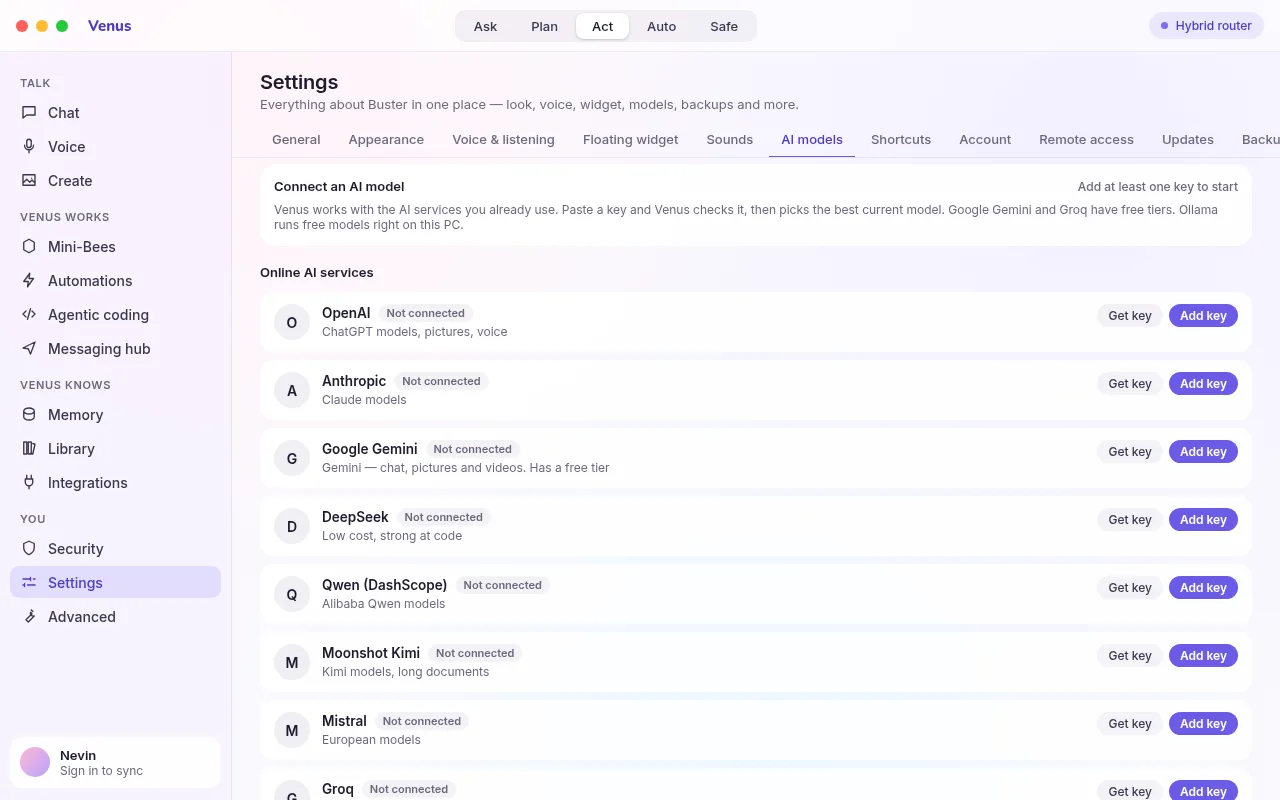
Say any wake phrase: "Venus", "Hey Venus", "Okay Venus", "Hi Venus" or "Hello Venus", followed by your question.
- Background noise is filtered out, and Venus learns how loud your room is
- She waits until you have finished speaking
- Talk over her to interrupt; she stops and listens
- Choose her voice in Settings, then Voice, including ElevenLabs voices
Create something
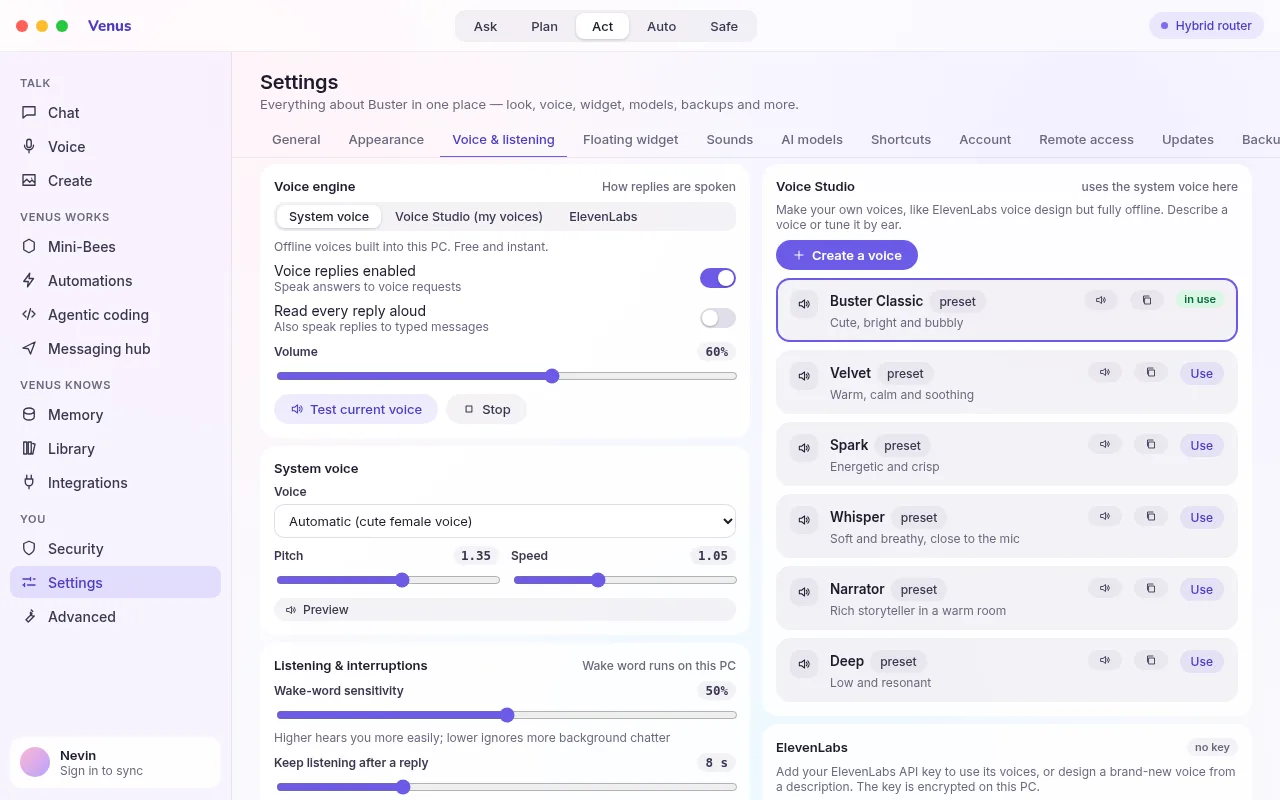
Open Create in the sidebar. Choose Photo, Video or Document, type your idea, and press Create.
Make it yours
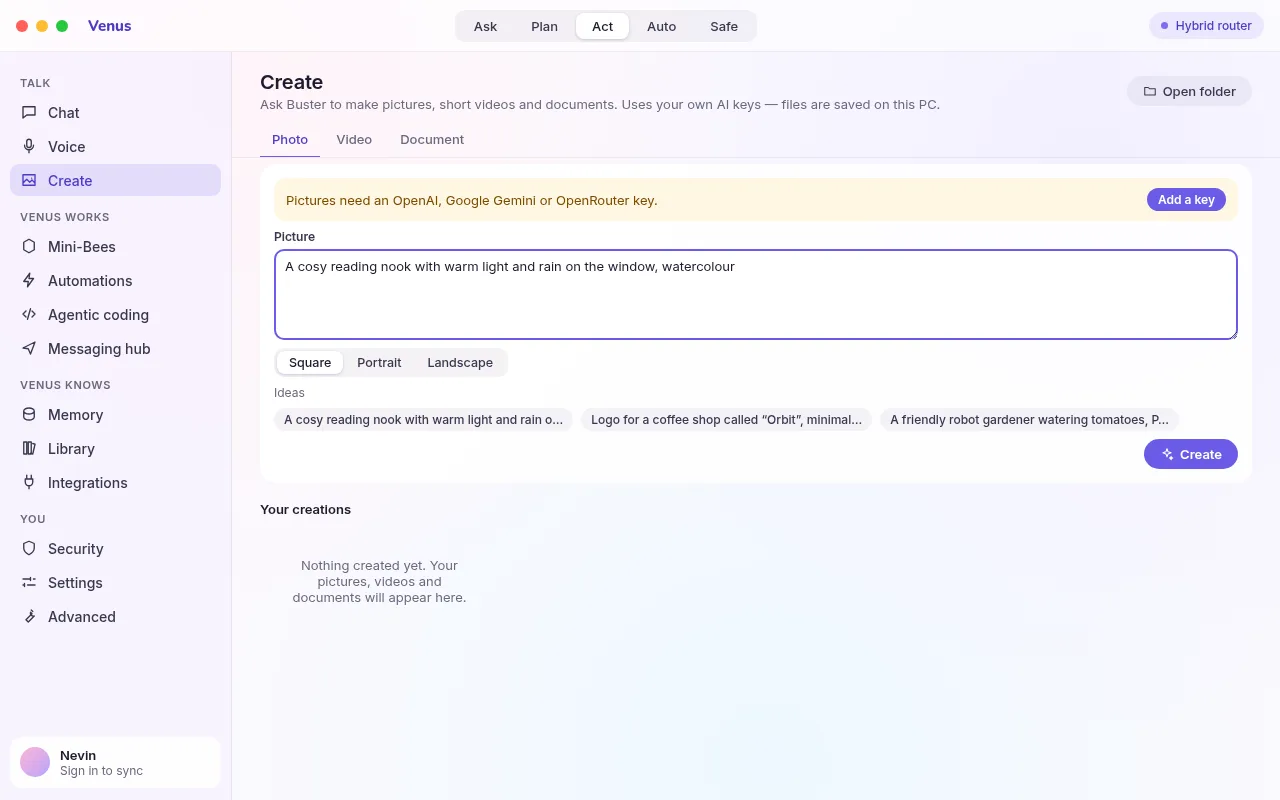
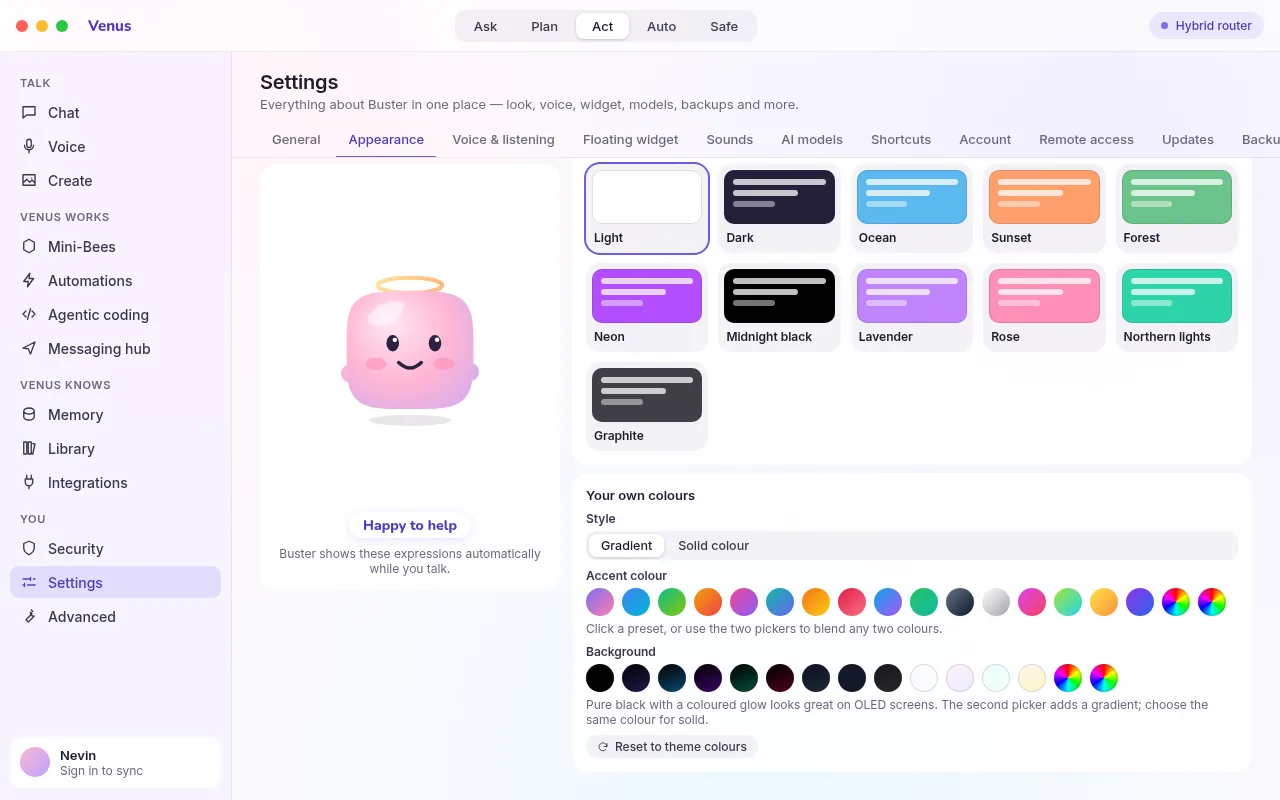
Settings, then Appearance: pick one of 11 themes, or switch on "Your own colours" and choose a gradient or solid accent and background.
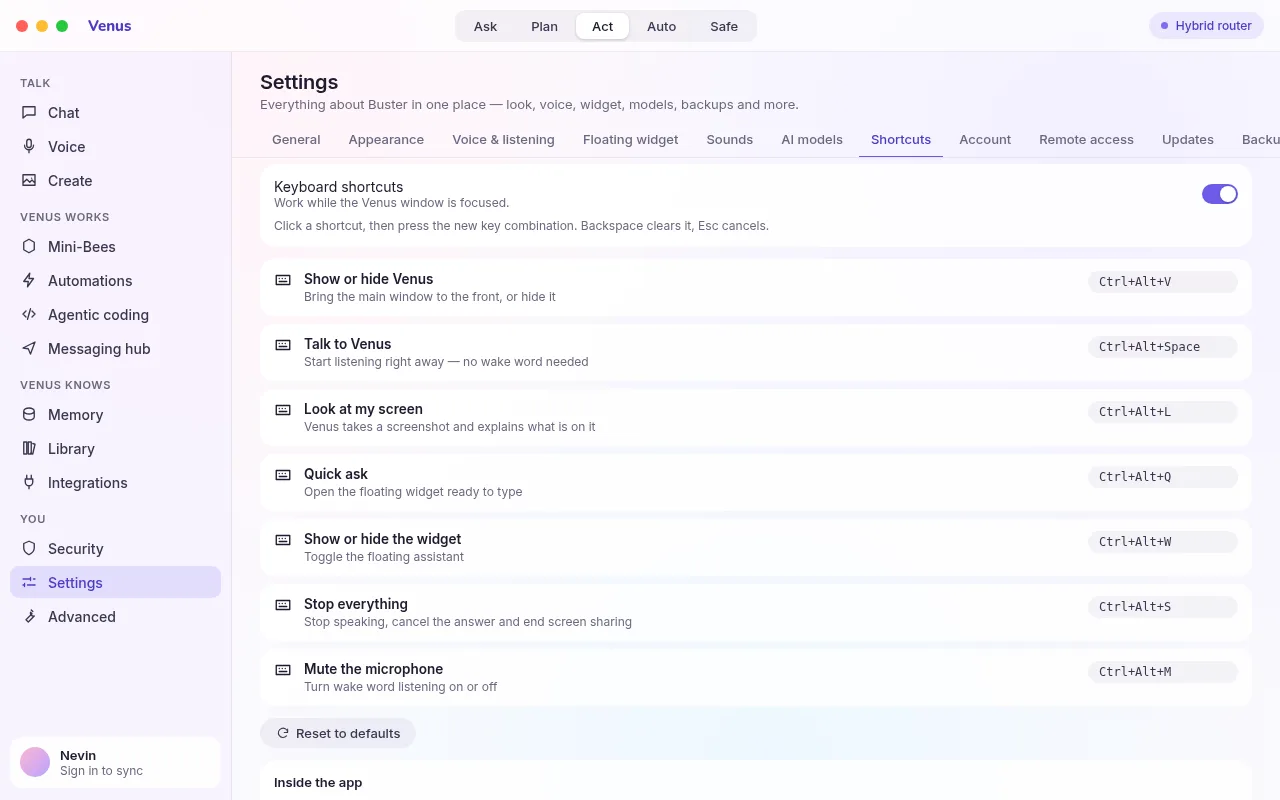
Keyboard shortcuts
| Ctrl+Alt+V | Show or hide Venus |
| Ctrl+Alt+Space | Talk now |
| Ctrl+Alt+L | Look at my screen |
| Ctrl+Alt+Q | Quick ask |
| Ctrl+Alt+W | Floating widget |
| Ctrl+Alt+S | Stop talking |
| Ctrl+Alt+M | Mute the microphone |
Change them in Settings, then Shortcuts. Press the box, then press your new keys.
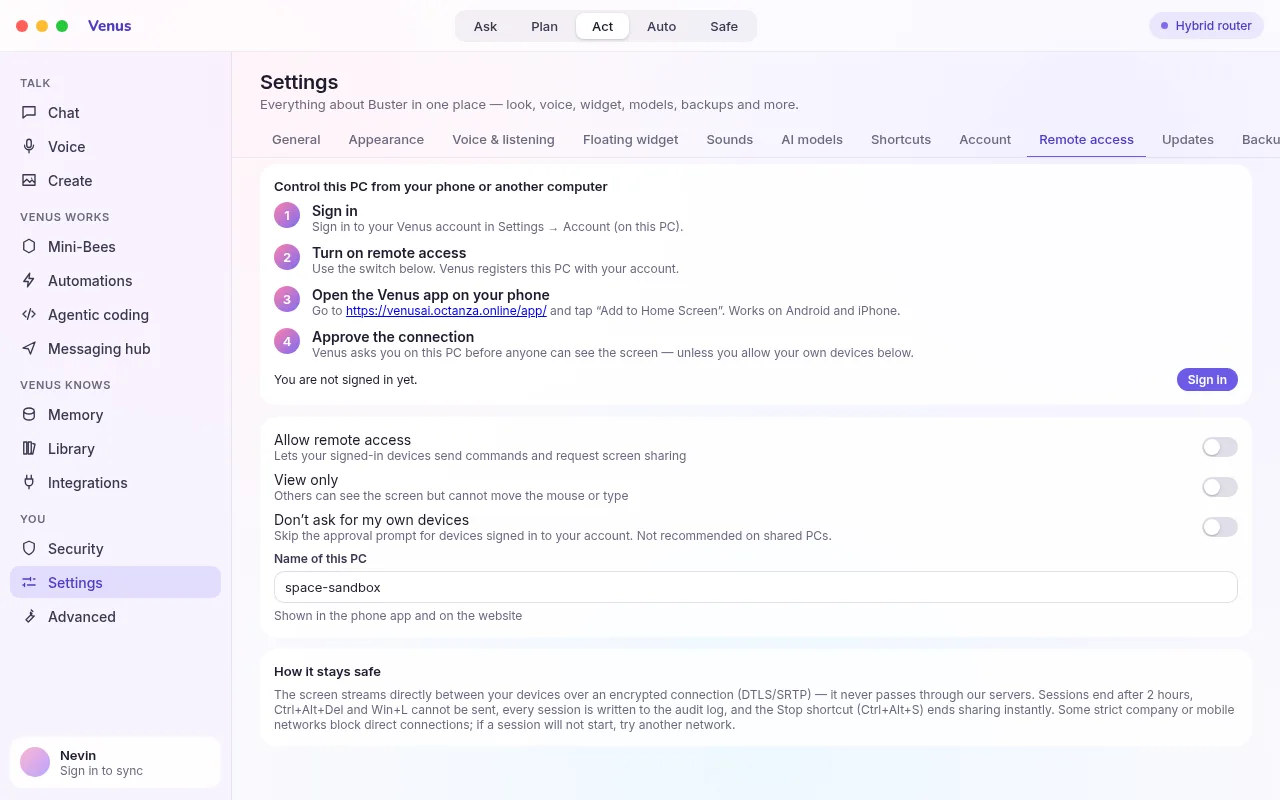
Control your PC from your phone
Sign in on the PC
Settings, then Account. Use email, Google, GitHub or Microsoft.
Turn on Remote control
Settings, then Remote control. Give your PC a name.
Open Venus Remote on your phone
Go to venusai.nezilio.com/app and sign in with the same account. Add it to your home screen.
Connect
Pick your PC and press "View screen". Accept the request on the PC. Tap to click and use the keyboard button to type.
Updates install themselves
Venus checks for new versions, such as 1.2, and asks before installing. Every update is signed, and Venus checks the signature before she runs it. You can change this in Settings, then Updates.
Download Venus 1.2.0